🖌️ Themes
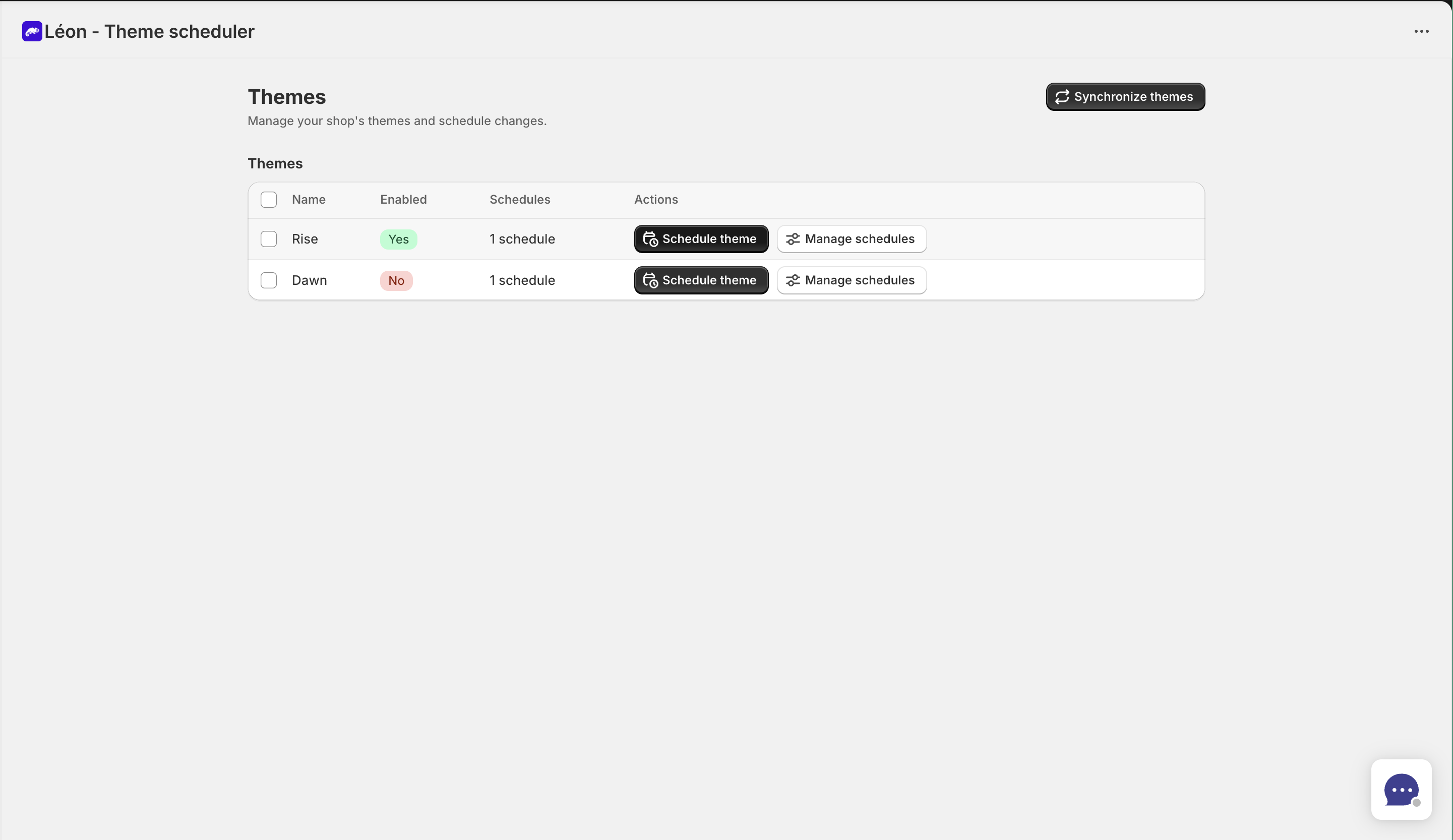
The Themes page displays all themes from your Shopify store and lets you quickly schedule or manage them.
Accessing the Themes PageDirect link to Accessing the Themes Page
- Go to your Shopify admin dashboard
- Click on Apps in the left sidebar
- Click on Léon - Theme Scheduler
- Click on Themes in the app menu
Understanding the Theme TableDirect link to Understanding the Theme Table
| Column | Description |
|---|---|
| Name | The theme name as it appears in Shopify |
| Enabled | Shows Yes (green) for your active theme, No for others |
| Schedules | Number of schedulings associated with this theme |
| Actions | Quick actions for each theme |
Your currently active (published) theme is always shown first and marked with a green "Yes" badge.
Theme StatusDirect link to Theme Status
Some themes cannot be scheduled due to their status in Shopify:
| Status | Can Schedule? | Description |
|---|---|---|
| Main | ✅ Yes | Your published theme |
| Unpublished | ✅ Yes | Available themes in your library |
| Development | ✅ Yes | Themes in development |
| Locked | ❌ No | Protected by Shopify |
| Archived | ❌ No | Archived themes |
| Demo | ❌ No | Trial/demo themes |
Available ActionsDirect link to Available Actions
Schedule ThemeDirect link to Schedule Theme
Click Schedule theme to create a new scheduling with this theme pre-selected.
This button is disabled for locked, archived, or demo themes.
Manage SchedulesDirect link to Manage Schedules
Click Manage schedules to view all schedulings for this specific theme. This opens the Scheduling page with a filter applied.
Search and SortDirect link to Search and Sort
Searching ThemesDirect link to Searching Themes
Use the search bar to find themes by name. The search is case-insensitive.
Sorting OptionsDirect link to Sorting Options
Sort your themes by:
- Schedule count (most to least, or least to most)
- Theme name (A-Z or Z-A)
By default, themes are sorted by number of schedules (descending), with your active theme always shown first.
Synchronizing ThemesDirect link to Synchronizing Themes
If your themes list doesn't match what's in Shopify:
- Click the Synchronize themes button (top right)
- Wait for the sync to complete
- Your theme list will be updated
Use this if:
- A theme is missing from the list
- You deleted a theme but it still appears
- You recently added new themes to Shopify
Next StepsDirect link to Next Steps
- Create a scheduling - Schedule your first theme change
- Scheduling page - Manage all your scheduled changes
- Sequences - Chain multiple theme changes together