📆 Scheduling
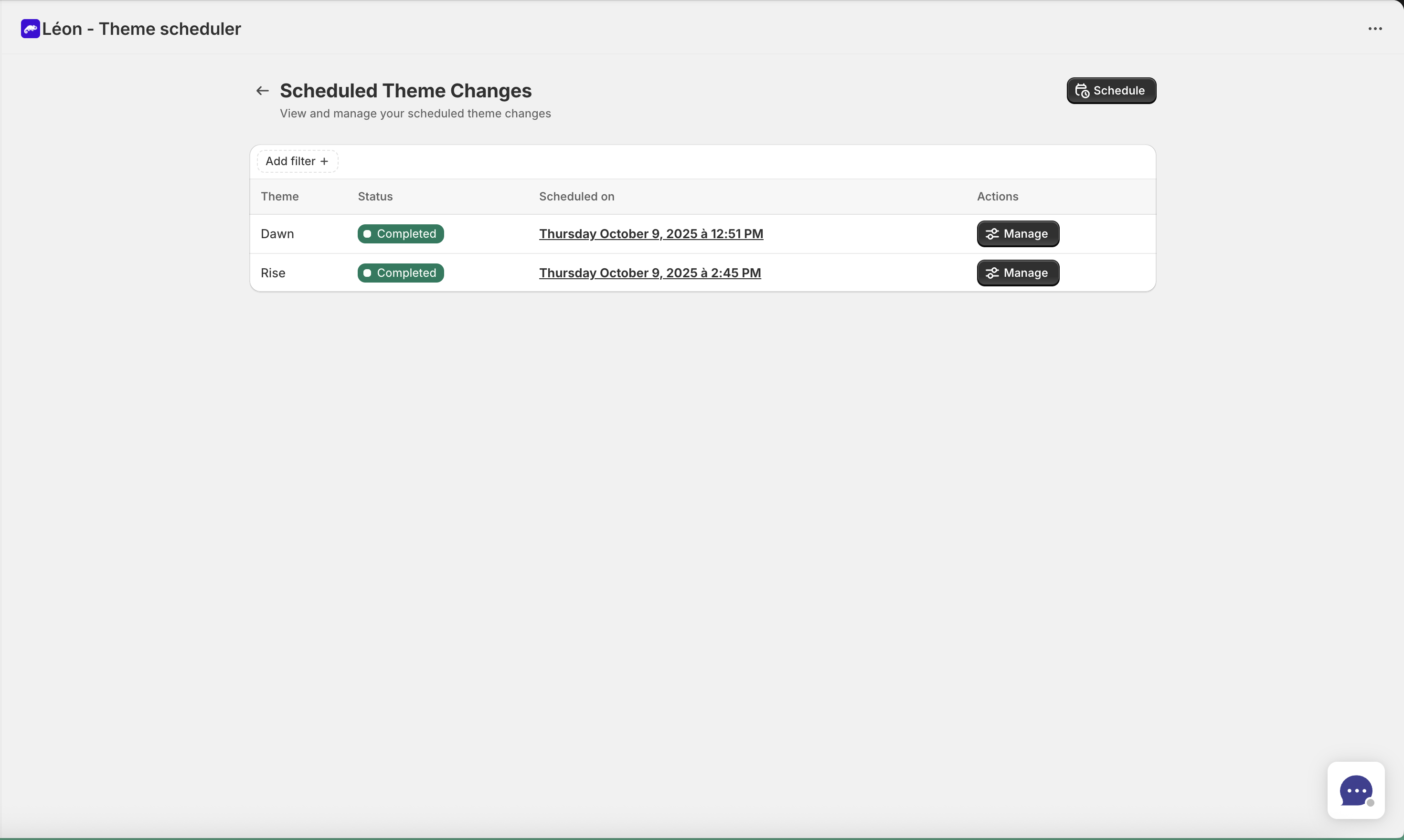
The Scheduling page is your central hub for managing all theme changes. View upcoming schedules, track completed changes, and organize with tags.
Accessing the Scheduling PageDirect link to Accessing the Scheduling Page
- Go to your Shopify admin dashboard
- Click on Apps in the left sidebar
- Click on Léon - Theme Scheduler
- Click on Scheduling in the app menu
Understanding the Schedule TableDirect link to Understanding the Schedule Table
| Column | Description |
|---|---|
| Theme | The theme that will be activated |
| Status | Current status of the scheduling |
| Scheduled On | Date and time of execution (in your timezone) |
| Tags | Color-coded tags for organization |
| Actions | Manage button to view/edit details |
Schedule StatusDirect link to Schedule Status
Each scheduling has a status indicating its current state:
| Status | Description |
|---|---|
| Scheduled | Waiting to execute at the scheduled time |
| Completed | Successfully executed |
| Failed | Execution failed (can be retried) |
| Paused | Temporarily paused, won't execute |
| Cancelled | Permanently cancelled |
Filtering SchedulesDirect link to Filtering Schedules
Use filters to find specific schedulings:
By StatusDirect link to By Status
Filter by one or multiple statuses:
- Scheduled
- Completed
- Failed
- Cancelled
By ThemeDirect link to By Theme
Show only schedulings for a specific theme.
By TagsDirect link to By Tags
Filter by tags you've created (only appears if you have tags).
You can combine multiple filters. For example, show all "Scheduled" items for "Holiday Theme" with tag "Black Friday".
Managing a ScheduleDirect link to Managing a Schedule
Click Manage on any scheduling to open the detail page where you can:
Edit DetailsDirect link to Edit Details
- Theme: Change which theme will be activated
- Date & Time: Modify when it will execute
- Timezone: Adjust the timezone
- Notes: Add rich-text notes for context
- Tags: Organize with color-coded tags
Pause / ResumeDirect link to Pause / Resume
For scheduled items, you can:
- Pause: Temporarily stop the scheduling from executing
- Resume: Re-enable a paused scheduling
When paused, the theme change won't happen at the scheduled time. Resume it to re-add it to the queue.
Retry Failed SchedulesDirect link to Retry Failed Schedules
If a scheduling failed:
- Open the scheduling detail page
- You'll see a "Scheduling failed" banner
- Click Execute now to retry immediately
CancelDirect link to Cancel
Click Cancel to permanently delete a scheduling. This cannot be undone.
You cannot cancel schedulings that are already completed or failed.
Using NotesDirect link to Using Notes
Each scheduling can have optional notes to help you remember:
- Why you scheduled this change
- Related campaign details
- Anything else useful for your team
Notes support basic formatting (bold, italic, lists).
Using TagsDirect link to Using Tags
Tags help organize your schedulings:
- Create tags while editing any scheduling
- Assign multiple tags to each scheduling
- Filter by tags on the main list
- Color-code tags for visual organization
Example TagsDirect link to Example Tags
- "Black Friday"
- "Holiday 2025"
- "Product Launch"
- "A/B Test"
See Create and Manage Tags for a complete guide on using tags.
Time DisplayDirect link to Time Display
Hover over any scheduled time to see:
- Time in your local timezone
- Time in UTC
- Time remaining until execution
This helps avoid timezone confusion when scheduling changes.
Creating a New ScheduleDirect link to Creating a New Schedule
Click the Schedule button (top right) to create a new scheduling.
See Create a Theme Scheduling for step-by-step instructions.
Next StepsDirect link to Next Steps
- Create a scheduling - Detailed creation guide
- Themes page - View and manage your themes
- Sequences - Chain multiple changes together
- Notifications - Get alerts when themes change